If a website isn’t loading correctly, shows outdated information or suddenly starts behaving strangely, clearing your browser cache is one of the simplest troubleshooting steps you can try.
Google Chrome stores temporary website files on your device so pages you’ve previously visited can load more efficiently.
Usually, that’s helpful.
But occasionally those stored files can become outdated or conflict with newer versions of a website.
That’s when knowing how to clear cache in Chrome becomes useful.
In this guide, we’ll explain how to clear Chrome’s cache on Windows, Mac, Android, iPhone and iPad, along with what actually happens when you delete cached files.
Google provides built-in controls for deleting browsing data, including cached images and files. Google Chrome Help — Delete browsing data
Quick Answer: How Do You Clear Cache in Chrome?
On a computer, open Chrome and press:
Ctrl + Shift + Delete
On a Mac, use:
Command + Shift + Delete
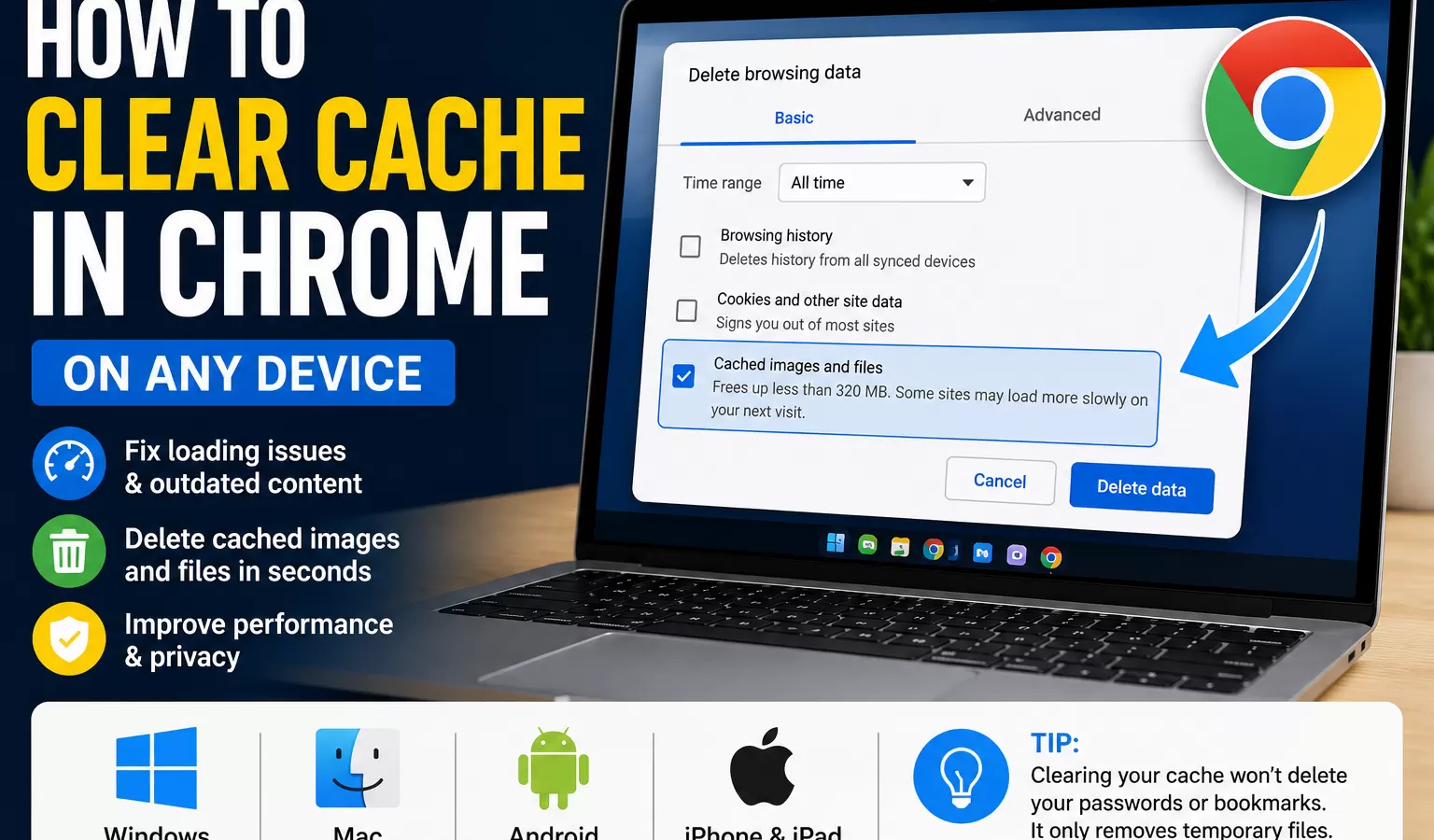
Chrome will open the Delete browsing data controls.
Choose a time range and select:
Cached images and files
Then delete the selected data.
The exact interface can change as Chrome is updated, but the basic process remains similar.
How to Clear Chrome Cache on Windows
Open Google Chrome.
Press:
Ctrl + Shift + Delete
This opens Chrome’s browsing-data controls.
Choose the time range you want.
Then select:
Cached images and files
If you only want to clear the cache, check carefully before selecting additional categories.
Finally, click the button to delete the selected data.
Afterward, reload the website that was giving you trouble.
How to Clear Chrome Cache on Mac
The process is very similar on macOS.
Open Chrome and press:
Command + Shift + Delete
Choose your preferred time range.
Select:
Cached images and files
Then delete the selected browsing data.
You can also access these controls through Chrome’s menus instead of using the keyboard shortcut.
If you’re switching between Windows and Mac frequently, remember:
Windows: Ctrl + Shift + Delete
Mac: Command + Shift + Delete
How to Clear Chrome Cache Without a Keyboard Shortcut
You don’t have to remember a shortcut.
Open Chrome.
Click the three-dot menu.
Look for the option related to deleting browsing data.
Chrome will allow you to choose which information you want removed.
Select:
Cached images and files
Choose your desired time range and confirm.
Google’s Chrome Help documentation explains that browsing data can be deleted directly through Chrome’s controls. Google Chrome Help — Delete browsing data
Which Time Range Should You Choose?
Chrome allows you to choose how much browsing data you want to remove.
Depending on the version you’re using, available ranges can include recent periods or all stored data.
Which one should you choose?
If a website only started having problems recently, deleting recent cached data may be enough.
If you’re troubleshooting a persistent problem and don’t mind removing the entire cache, you can choose:
All time
Keep in mind that deleting more data can cause websites to load a little more slowly the first time you revisit them.
What Does “Cached Images and Files” Mean?
When you visit a website, your browser may temporarily store resources such as:
- Images
- Website files
- Scripts
- Other page resources
This is called caching.
Instead of downloading every resource from scratch every time you visit, Chrome can reuse certain stored files.
That can make repeat visits more efficient.
However, if a website changes but Chrome continues using an older stored resource, you may occasionally see outdated or broken content.
Clearing the cache forces the browser to retrieve fresh resources as you continue browsing.
Will Clearing Chrome Cache Delete My Passwords?
Not if you only select Cached images and files.
Chrome separates different categories of browsing data.
For example, browsing data controls can include categories related to:
- Browsing history
- Cookies and site data
- Cached images and files
- Saved passwords
- Autofill information
These categories are not all the same.
If your goal is simply to clear the cache, pay attention to which boxes or options are selected before confirming.
Don’t delete additional categories unless you actually want them removed.
Will Clearing Cache Log Me Out of Websites?
Clearing only cached images and files is different from deleting cookies and site data.
Cookies can be involved in keeping you signed into websites.
Therefore, if you don’t want to sign back into websites, be careful about deleting cookies.
Google notes that deleting cookies can sign you out of sites and remove saved preferences. Google Chrome Help — Clear cache and cookies
For basic cache troubleshooting, start with Cached images and files.
How to Clear Cache in Chrome on Android
Open the Chrome app on your Android device.
Open Chrome’s menu and navigate to the controls for deleting browsing data.
Select the appropriate time range.
Choose:
Cached images and files
Then delete the selected data.
Menu names and placement can vary slightly as Chrome is updated, but Google’s Chrome Help provides current instructions for Android. Google Chrome Help — Delete browsing data on Android
After clearing the cache, reopen or refresh the website that wasn’t working correctly.
How to Clear Chrome Cache on iPhone or iPad
Chrome for iPhone and iPad also provides controls for deleting browsing data.
Open the Chrome app.
Open its menu and find:
Delete Browsing Data
Select the data you want removed.
If your goal is clearing temporary browser files, choose the relevant cached-data option shown by your version of Chrome.
Confirm the deletion.
Because mobile interfaces can change with app updates, follow the labels displayed in your current Chrome version.
When Should You Clear Your Chrome Cache?
You don’t need to clear your cache every day.
Most of the time, Chrome manages cached content automatically.
However, manually clearing it can be useful when:
A Website Looks Broken
Buttons, images or formatting may not display correctly.
You’re Seeing an Old Version of a Page
Chrome may still be displaying previously cached resources.
A Website Changed Recently
Developers may have updated the site while your browser still has older files.
You’re Troubleshooting a Browser Problem
Clearing cache is a common first troubleshooting step because it’s simple and reversible in the sense that Chrome can download website resources again.
A Website Works in Incognito but Not Normally
This can be a useful clue.
Incognito sessions don’t behave exactly like your regular browsing session.
If a website works in Incognito but behaves incorrectly in your normal Chrome window, cached data, cookies or extensions are among the things worth investigating.
Clear Cache vs. Clear Cookies: What’s the Difference?
These two options are frequently confused.
Cache
The cache primarily stores temporary website resources to help pages load efficiently.
Cookies
Cookies can store information related to sessions, preferences and other website functionality.
Deleting the cache can make websites download fresh resources.
Deleting cookies can have a more noticeable effect because it may sign you out or reset website preferences.
If you’re simply trying to fix a visual problem, start by clearing the cache rather than deleting everything.
Clear Cache vs. Browsing History
Your browsing history is the record of pages you’ve visited.
Your cache contains temporary website resources.
They’re different.
You can clear cached images and files without necessarily deleting your entire browsing history.
Always check which categories are selected before confirming.
How to Hard Refresh Chrome
Sometimes you don’t need to clear your entire browser cache.
A hard refresh can force a webpage to reload more aggressively.
On Windows, common Chrome refresh shortcuts include:
Ctrl + R
for a normal reload.
For stronger reload behavior, browser developer tools provide additional reload options.
Before deleting a large amount of browsing data, simply refreshing the problematic page is worth trying.
Chrome Cache Not Clearing? Try This
If you’ve cleared cached files but the website still doesn’t work correctly, the cache may not be the cause.
Try these troubleshooting steps.
Close and Reopen Chrome
Completely close the browser and reopen it.
Restart Your Device
A restart can resolve temporary software issues unrelated to the browser cache.
Try Incognito Mode
Open an Incognito window and test the website.
Check Your Extensions
A browser extension may interfere with the page.
Try disabling extensions temporarily, especially if the problem occurs only in your normal Chrome session.
Check the Website on Another Device
If the website is broken everywhere, the problem may be with the website itself rather than Chrome.
Update Chrome
An outdated browser can occasionally cause compatibility problems.
Keep Chrome updated when possible.
How Often Should You Clear Chrome Cache?
There’s generally no need to clear your cache on a fixed daily or weekly schedule.
The cache exists for a reason.
It can improve browsing efficiency by storing resources locally.
Clear it when you have a specific reason, such as troubleshooting a website or removing stored browser data.
Deleting it constantly isn’t necessary for ordinary browsing.
Does Clearing Cache Make Chrome Faster?
Sometimes it can help if stored browser data is contributing to a problem.
But clearing the cache isn’t a universal speed boost.
In fact, immediately after clearing it, some websites may initially load more slowly because Chrome has to download resources again.
If Chrome is consistently slow, investigate other possible causes such as:
- Too many open tabs
- Resource-heavy extensions
- Low available memory
- Outdated software
- Problems with a particular website
Don’t assume the cache is always responsible.
How to Clear Cache for One Website
Sometimes only one website is causing trouble.
In that situation, deleting all browser data may be unnecessary.
Chrome provides site-specific controls and developer tools that can help manage data for individual websites.
The exact interface can vary by Chrome version.
If you’re troubleshooting a single site, consider removing its site data rather than wiping data associated with every website you use.
Should You Clear Cookies at the Same Time?
Not necessarily.
If you clear cookies, you may be signed out of websites and lose some saved site preferences.
If you’re troubleshooting a page that simply looks outdated or visually broken, try clearing only:
Cached images and files
first.
If the problem continues and appears related to your login or website session, cookies may become relevant.
How to Clear Chrome Cache on Windows vs. Mac
The overall process is almost identical.
The main difference is the shortcut:
| Device | Shortcut |
|---|---|
| Windows | Ctrl + Shift + Delete |
| Mac | Command + Shift + Delete |
Both shortcuts take you quickly to Chrome’s browsing-data controls.
Having Trouble Taking a Screenshot of the Problem?
If you’re trying to show someone the Chrome error you’re experiencing, taking a screenshot can make troubleshooting much easier.
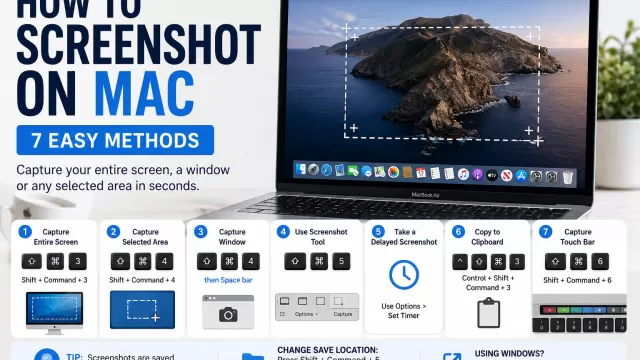
Windows users can read our complete guide on how to take a screenshot on Windows.
Mac users can follow our guide on how to screenshot on Mac.
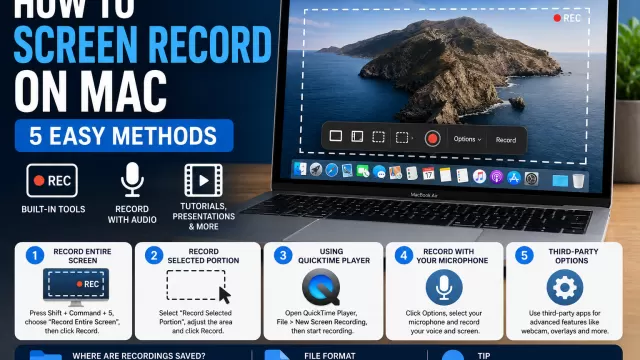
If the issue is easier to demonstrate as a video, see how to screen record on Windows or our guide to screen recording on Mac.
That connects ARTICLE #5 with all four Technology articles we’ve already created.
Frequently Asked Questions
What is the fastest way to clear cache in Chrome?
On Windows, press Ctrl + Shift + Delete. On Mac, press Command + Shift + Delete, then select the cached-data option you want to remove.
What happens when I clear Chrome’s cache?
Chrome removes temporary website resources stored on your device. Websites may need to download those resources again when you revisit them.
Does clearing cache delete passwords?
Clearing only cached images and files is different from deleting saved passwords. Check the selected data categories carefully before confirming.
Will clearing cache log me out?
Clearing only the cache generally differs from deleting cookies. Deleting cookies can sign you out of websites.
Should I clear cache and cookies together?
Not always. If you’re troubleshooting a visual or outdated-page problem, try clearing the cache first.
Why does a website work in Incognito but not normal Chrome?
The difference can involve cached data, cookies, browser extensions or other session-specific factors. Test them individually rather than assuming the cache is definitely responsible.
How often should I clear Chrome cache?
You generally don’t need to clear it on a fixed schedule. Clear it when you’re troubleshooting or have another specific reason to remove cached files.
The Bottom Line
Learning how to clear cache in Chrome is useful when websites stop displaying correctly or your browser appears to be using outdated page resources.
On Windows, remember:
Ctrl + Shift + Delete
On Mac:
Command + Shift + Delete
Then select the appropriate cached-data option.
If you’re troubleshooting, start by deleting only what you actually need rather than automatically clearing passwords, cookies, history and every other category.
And if clearing the cache doesn’t solve the problem, investigate extensions, cookies, Chrome updates or the website itself.